Check before trusting
Every page carries quality signals, not just text. Warnings name the specific risk — glyph corruption, raster-backed text, reading-order divergence — and end in the next step to take.
Turn silent failures in PDF extraction into errors agents can recover from. On its own, extraction reports empty scans, glyph garbage, and scrambled columns as success — pdfvision flags them page by page and names the next step: render the page, run OCR, or crop to the region that matters.

The worst property of PDF extraction is that failure looks like success. A scan returns empty text, a broken font map returns readable-looking garbage, a two-column paper comes back interleaved — and every one of them comes back as a normal, successful result. An agent that trusts it answers wrong without ever knowing anything went wrong.
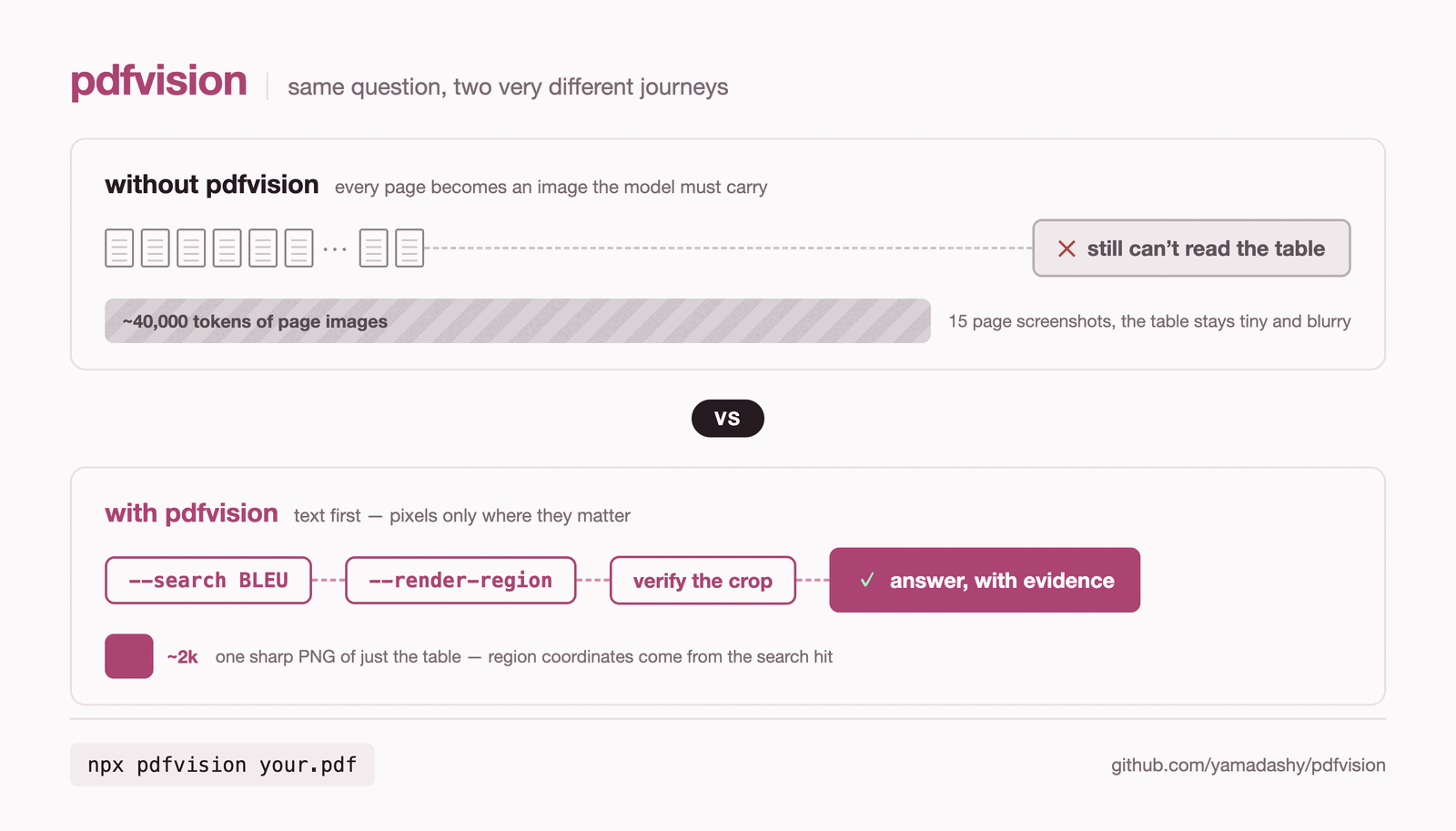
Most tools in this space aim at conversion: turn the PDF into clean Markdown and hope the result is faithful. pdfvision aims at diagnosis instead — it flags the pages where extraction cannot be trusted and fetches localized visual evidence there.
The loop it is built around:
That loop is closer to how a human reads a PDF: skim the page, notice when the visual page and the extracted text disagree, and zoom into the chart or form field that decides the answer.
Layout reconstruction, OCR, visual regions, and the rest of the surface are covered in the guides.
Run pdfvision without installing it:
npx pdfvision document.pdfWhen extraction goes wrong, the page says so. Here the warning flags lines whose visual order and native text order diverge — and the lines it quotes expose a second problem: a figure's label column this PDF's font map does not decode:
$ npx pdfvision tracemonkey.pdf -p 10
_chars: 6944 · images: 0 · coverage: 42% · vectors: 17 · warnings: 1 · size: 612×792pt_
… page body …
### Warnings
> **warning** (reading_order_divergence): layout line "?>9@AJ.0A:</C./8-2#3$4%56#" appears
> after "?>9@AJ.D<F@-<>2.@A:0>#3$4,56#" visually but earlier in the native text stream —
> native line order diverges from what a human reads; the body above is that reading order,
> rebuilt from the layout — render the page when exact sequence is critical
Without the warning, an agent reads ?>9@AJ.0A:</C./8-2#3$4%56# as a successful extraction and never finds out otherwise.
Render pages for a multimodal model:
npx pdfvision document.pdf --renderExtract structured JSON from a URL:
npx pdfvision --remote https://raw.githubusercontent.com/mozilla/pdf.js-sample-files/master/tracemonkey.pdf --format jsonSearch for evidence, then crop only the matching area:
npx pdfvision report.pdf --search "revenue" --json
npx pdfvision report.pdf --pages 3 --render --render-region 120,180,360,140 --render-output ./crops --json
Inspect visual structure without rendering every full page:
npx pdfvision slides.pdf --layout --image-boxes --vector-boxes --visual-regions --json
npx pdfvision slides.pdf --render-visual-regions --render-output ./regions --json